Your reps are probably doing some version of this right now, copying names from LinkedIn into a spreadsheet, forgetting which conversations are warm, and trying to remember whether the lead ever made it into Salesforce, HubSpot, or Microsoft Dynamics. That's usually the moment when LinkedIn CRM integration stops being a nice-to-have and becomes the difference between a real pipeline and a pile of scattered activity. LinkedIn's own CRM Sync materials frame the workflow as a way to connect pipeline, lead quality, revenue data, and lifecycle stages back to LinkedIn Ads, so teams can close the loop from click to conversion to revenue (LinkedIn CRM Sync agency cheat sheet).
Table of Contents
- Introduction to LinkedIn CRM Integration
- Comparing Integration Options
- Setting Up Field Mapping and Data Models
- Automating Lead Routing and Follow-Up
- Ensuring Permissions and Compliance
- Testing Monitoring and Troubleshooting
- Measuring ROI and Scaling Workflows
Introduction to LinkedIn CRM Integration
A lot of teams hit the same wall. LinkedIn brings in conversations, profile views, comments, and form fills, but the handoff into the CRM feels messy, slow, and hard to trust. That's where a real LinkedIn CRM integration changes the operating model, because it turns LinkedIn activity into something sales can route, score, and report on instead of leaving it in someone's inbox or browser tabs.
This lead tracking workflow is useful to think about alongside the CRM itself, because the value isn't just storing contacts. The value is making sure the right engagement becomes the right record, with the right owner, at the right time. LinkedIn Sales Navigator's CRM integration is explicitly designed to streamline daily sales and relationship workflows by connecting Sales Navigator with a CRM, which puts the tool inside the sales operating system rather than outside it (LinkedIn Sales Navigator help).
That distinction matters. If LinkedIn only exports names, the CRM becomes a dumping ground. If it links engagement to lifecycle stages, pipeline and revenue can finally be traced back to the activity that created them.
Comparing Integration Options
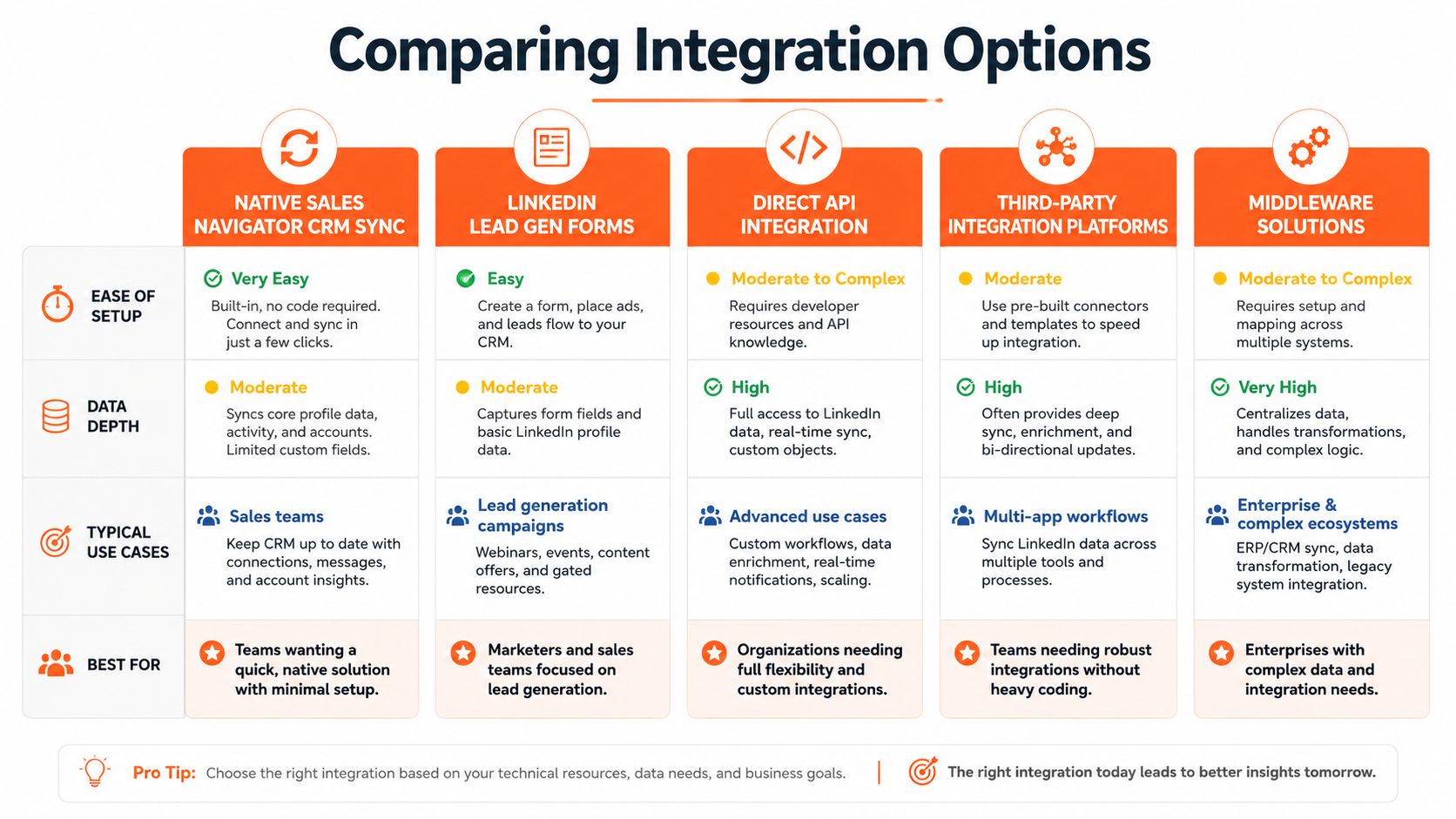
Teams usually compare five paths, even if they don't say it out loud. Native Sales Navigator CRM sync, Lead Gen Forms, direct API work, middleware like Zapier or Make, and third-party connectors each solve a different problem, and each creates a different maintenance burden.
Native sync versus form capture
Native Sales Navigator sync works well when the team already lives in a major CRM and wants tighter workflow consolidation. LinkedIn positions this integration as part of the sales operating system, which is why it's a strong fit for reps who need less tab switching and more record continuity (LinkedIn Sales Navigator help). The trade-off is that native sync is narrower than many teams expect, especially if they want richer routing or intent handling.
Lead Gen Forms are better when the main goal is fast capture from ads and a simple handoff into the CRM. For a practical workflow, CRM arrival is often expected within about 15 minutes, and duplicate submissions should update existing records instead of creating new ones (Rework lead capture automation guide). That makes forms a cleaner front door for paid demand than manual imports or ad hoc exports.
API, middleware, and connectors
Direct API integration gives more control, but it also asks more from your team. You're responsible for field mapping, deduplication, and error handling, which means it works best when someone owns the integration as a system, not a side project. Middleware tools sit in the middle, giving non-developers a way to move leads into HubSpot or Salesforce while still automating routing and follow-up.
Third-party connectors fill gaps when native sync isn't enough, but they're only as good as the governance around them. If you use them to enrich and route without clear rules, they can make the CRM noisier instead of more useful.
Practical rule: choose the simplest integration that preserves field quality, ownership, and attribution. If the setup makes those worse, it's not solving the actual problem.
Setting Up Field Mapping and Data Models
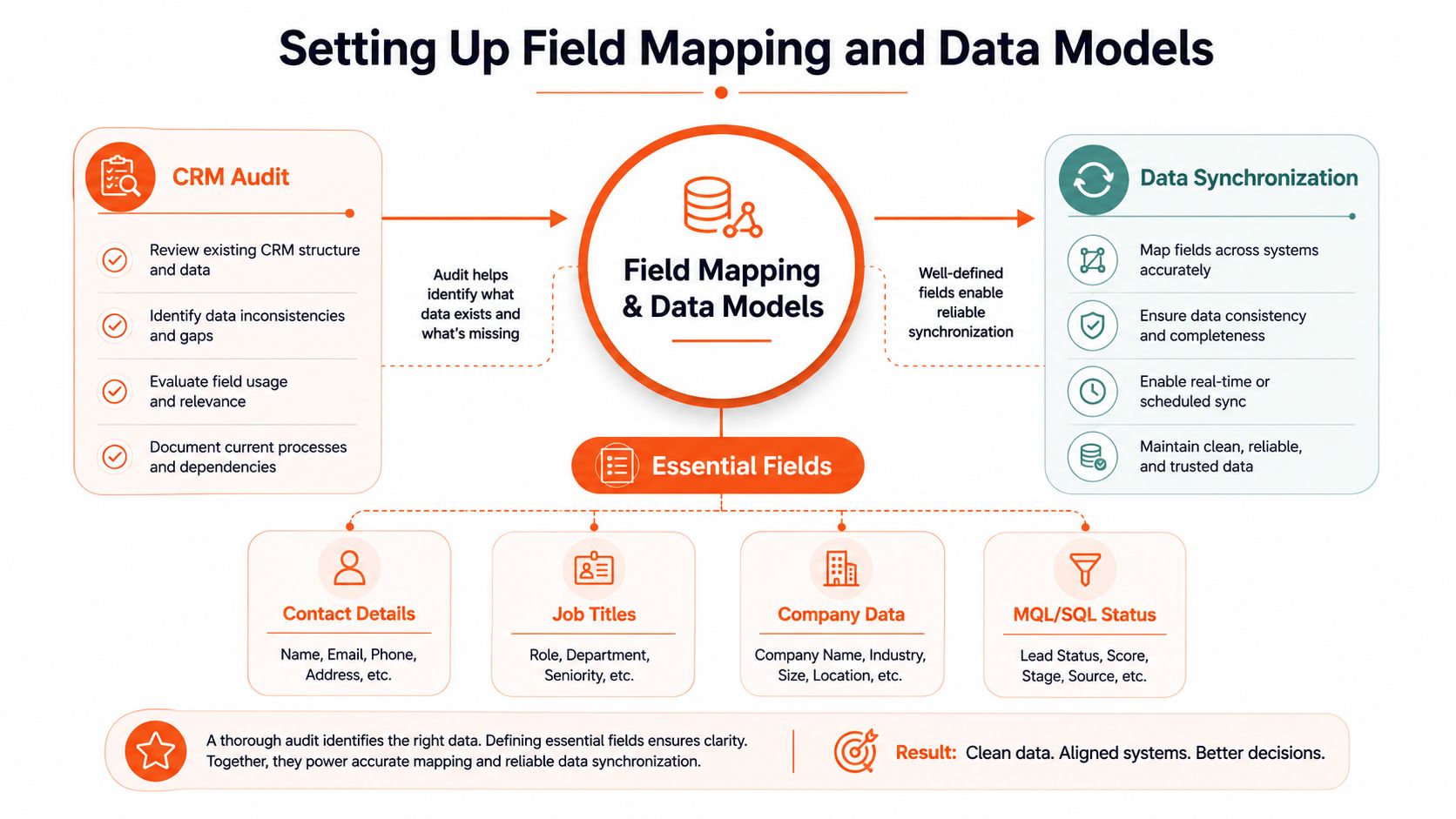
Field mapping is where most integrations either become reliable or start drifting. LinkedIn data changes often, job titles shift, companies get renamed, and engagement signals lose meaning if the CRM doesn't know which system owns which fields. LinkedIn's own CRM data integration guidance recommends a deep data audit, targeted enrichment only for fields that matter, and then full integration of clean data into core systems (LinkedIn CRM data integration guidance).
Start with the audit, not the automation
Before connecting anything, identify which fields matter to sales motion. Common examples include contact details, job title, company, source, lifecycle stage, and revenue-stage markers such as MQL, SQL, Opportunity, and Closed/Won. In independent implementation guidance, teams are told to authorize LinkedIn and the CRM first, map fields like job title and company, and only then define sync triggers and deduplication rules before broader automation (Straight In integration guide).
That order is important. If you automate before the model is clear, you end up encoding bad decisions into the system. One guide on CRM integration quality also stresses that duplicates, missing fields, inconsistencies, and formatting issues can break the workflows built on top of the data (LinkedIn CRM data integration guidance).
Pilot small, then scale
A controlled pilot beats a full-database launch. One implementation pattern recommends starting with 50 to 100 records and checking duplicate detection, formatting, and field mapping before you scale up (Straight In integration guide). For a Lead Gen Form flow, another benchmark recommends verifying that submissions appear in the CRM within about 15 minutes, while duplicate submissions update existing records instead of creating new ones (Rework lead capture automation guide).
Don't map every possible field just because the connector can carry it. Minimum necessary data is easier to trust, easier to debug, and easier to govern.
A useful way to think about the model is simple. Decide what LinkedIn can populate, decide what the CRM owns, and decide which fields should only move one way. That avoids the kind of silent conflicts that make reporting look clean while the underlying records are inconsistent.
Automating Lead Routing and Follow-Up
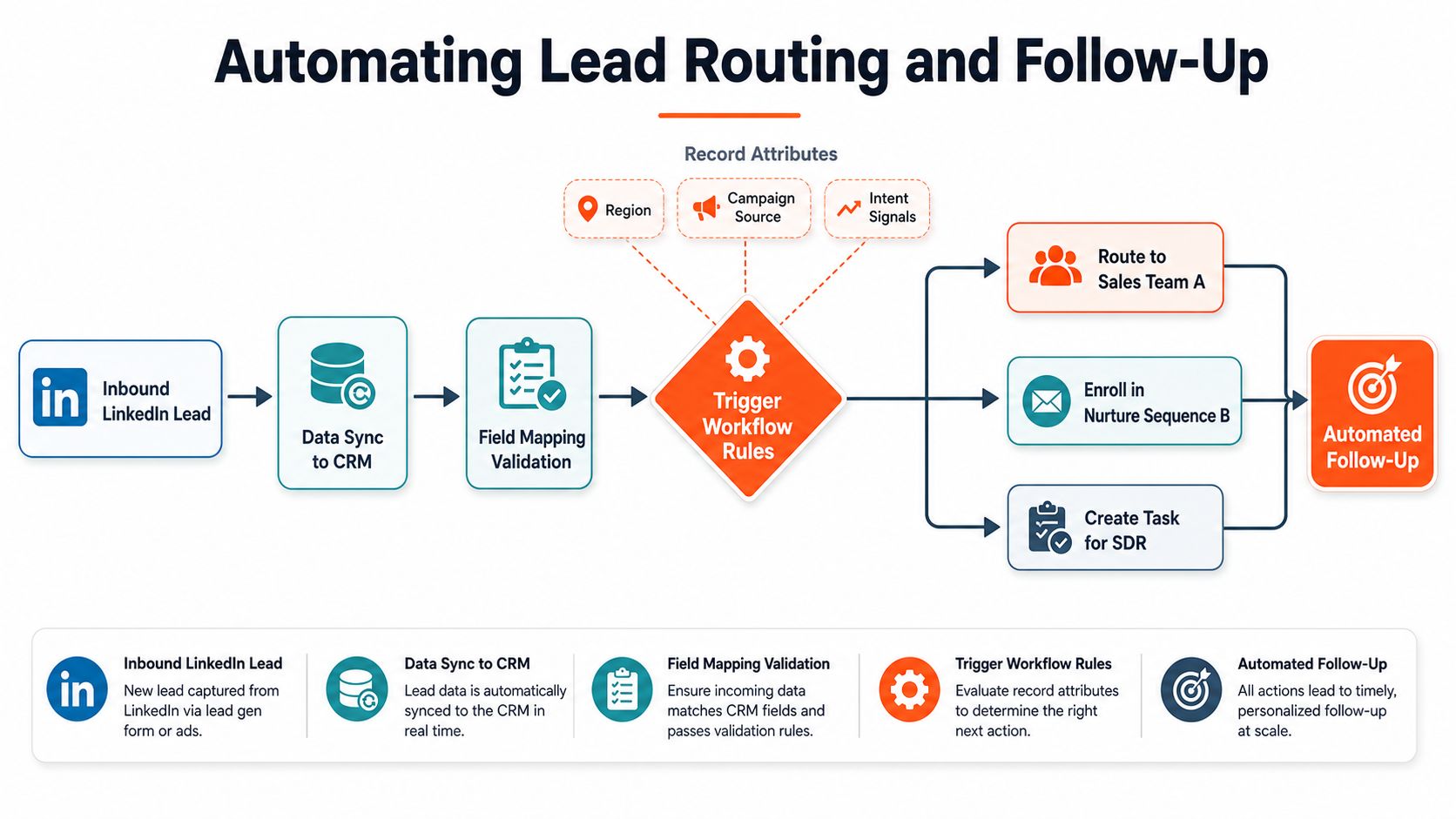
Once the fields are mapped, the next question is what happens the moment a lead lands. A good workflow doesn't just save a contact, it decides who owns it, what happens next, and whether the lead should go to a rep, a nurture sequence, or a hold queue. The cleanest setups use record attributes like region, campaign source, and intent signals to drive that decision.
Build the routing logic first
Start with a single source of truth for assignment rules. If a lead comes from a Lead Gen Form, route it by region or segment immediately. If it comes from LinkedIn engagement, add a layer that looks at the behavior behind the record, not just the identity of the contact.
That's where the gap in many workflows shows up. Most guides explain how to sync contacts, but fewer answer how to turn comments, likes, and post engagement into qualified, measurable next steps in a CRM workflow (PhantomBuster workflow guide). The useful move is to treat engagement as context, not proof. A comment can trigger follow-up, but it shouldn't bypass qualification rules by itself.
Use middleware for repeatable actions
Tools like Zapier or Make can connect form submissions and lead exports into HubSpot or Salesforce, then branch the lead based on source or behavior. A simple pattern is: inbound lead, CRM write, field validation, workflow trigger, then task creation or nurture enrollment. If the contact already exists, the flow should update the record instead of creating a duplicate.
Linqin can sit in that stack as one way to capture LinkedIn engagement context and move it into a warm-lead list with the originating comment or post attached, which is useful when sales wants the story behind the record rather than a bare name. That kind of context helps reps start conversations with something specific instead of a generic opener.
Keep the handoff visible
Automation should make follow-up faster, not invisible. If a rep can't see why a task was created, they won't trust the workflow for long. Good routing rules also make it easier to diagnose failures later, because you can trace whether the problem was source data, mapping, or assignment logic.
Practical rule: route on behavior only when the behavior has a business meaning. A like, a comment, and a form fill do not deserve the same next step.
Ensuring Permissions and Compliance
LinkedIn CRM integration touches identity, contact data, and sometimes activity history, so permissions have to be treated as a design issue, not paperwork after launch. OAuth scopes, admin consent, and API access all determine what data can move, who can approve it, and what the system can legally or operationally do with it.
The first mistake is giving too much access too early. Role-based permissions are cleaner when the integration owner, the CRM admin, and the sales manager each have a defined responsibility. That also makes audit logs more useful, because you can trace who approved the sync, who changed the mapping, and who touched the downstream record.
Compliance is easier when the data model is tight. If you only move the fields the team needs, consent handling and retention policy become simpler. That matters for GDPR and CCPA workflows, because consent for storing and processing personal data shouldn't be implied by convenience.
A workable checklist looks like this:
- Define roles clearly: Separate the person who configures the integration from the person who owns the CRM records.
- Limit scope by design: Grant only the permissions needed for the sync and no more.
- Log access and changes: Keep audit trails for field mapping, sync updates, and record edits.
- Document consent logic: Make sure Lead Gen Form and CRM storage rules are aligned.
- Review rate limits and failure modes: Access problems often show up as partial syncs, not obvious errors.
The core point is simple. If the permission structure is vague, the integration will be hard to defend and harder to trust.
Testing Monitoring and Troubleshooting
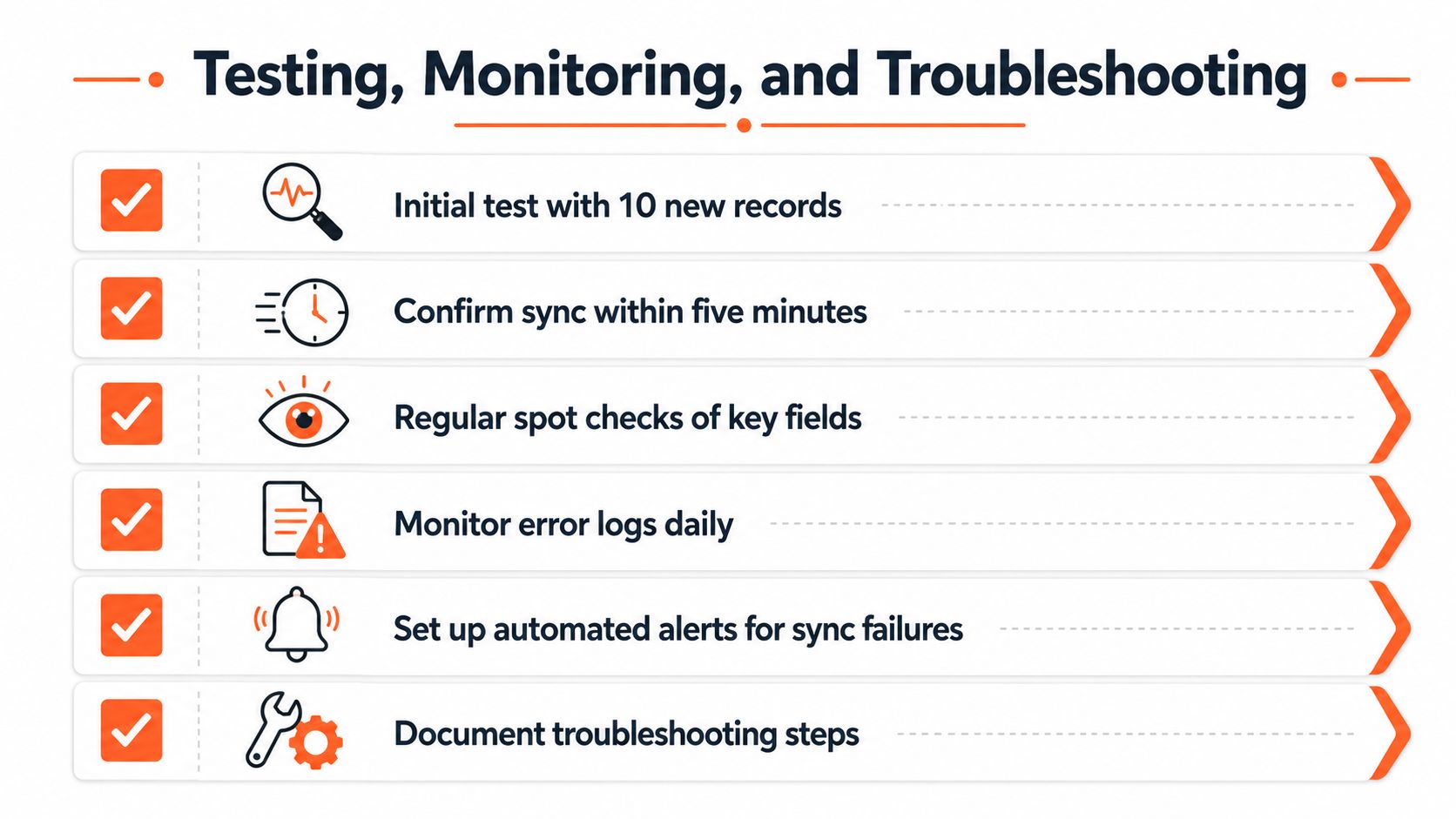
A launch isn't the finish line. The real test is whether the sync keeps working after the first clean day, the first duplicate, and the first field mismatch. Workflow guides recommend testing newly connected records within 5 minutes and then monitoring weekly sync counts, error rates, and API latency to confirm the system is capturing activity reliably (Outzeach CRM integration guide).
Test in layers
Start with a small set of 10 new LinkedIn connections and confirm they appear in the CRM within the expected window. After that, expand to 50 to 100 records to see whether deduplication, formatting, and field mapping still hold under a broader sample (Outzeach CRM integration guide, Straight In integration guide). That second step matters because many integrations only look clean at tiny volume.
If the records arrive but the wrong values land in the wrong fields, the problem is usually mapping, not transport. If records don't arrive at all, the issue is often authorization or a broken trigger.
Watch the operational signals
A healthy routine needs more than a one-time smoke test. Review duplicates, sync errors, and API uptime on a regular cadence, and check whether new contacts are overwriting the right fields or creating new records when they shouldn't (Outzeach CRM integration guide). If the system logs failures, don't just clear them, classify them.
A practical troubleshooting checklist is:
- Authorization failures: Reconnect the app and verify the right account owns the token.
- Field mismatches: Compare the CRM field type with the source value before changing the workflow.
- Duplicate creation: Check whether the flow searches for existing contacts before creating new ones.
- Latency spikes: Look at the sync queue and confirm the integration is still posting on schedule.
- Broken triggers: Re-test the exact event that should fire the workflow, not a nearby one.
Build a habit, not a rescue mission
The best teams don't wait for a rep to report missing data. They schedule recurring checks and treat the integration like a revenue system. That's the difference between a launch and an operating process.
A CRM integration that isn't monitored eventually becomes a reporting liability.
Measuring ROI and Scaling Workflows
LinkedIn's CRM strategy now works as an attribution layer, tying pipeline stages back to engagement so teams can close the loop from click to conversion to revenue (LinkedIn CRM Sync agency cheat sheet). That's the primary reason to invest in the integration, because the business case isn't just cleaner records, it's clearer cause and effect.
The easiest way to evaluate ROI is to look at whether the CRM can show where LinkedIn-sourced leads enter, how fast they move, and which engagement paths create real opportunities. If a comment-driven contact keeps showing up in pipeline reports, that's useful. If the same lead appears three times under different records, that's noise.
Scale what already works
Once the workflow is stable, expand by campaign, region, or team instead of opening everything at once. Tighten the field mapping only if the data quality starts drifting. Add new automation rules only when the team can explain what they'll change in the handoff.
That approach matters because more data doesn't automatically mean better pipeline quality. Without qualification rules and deduplication, the CRM gets cluttered and reps spend more time cleaning than selling. The smarter move is to keep the intent signal strong and the record model simple.
For teams wanting a broader playbook on outreach and handoff, this SDR growth guide fits well with a CRM-centered process. It's most useful when the sales motion already has a clear routing rule and wants to turn more LinkedIn activity into managed follow-up.
A key test is whether the system reduces manual work while keeping attribution believable. If it does, scale it. If it doesn't, the problem is usually governance, not traffic.
If you're ready to turn LinkedIn activity into a governed, trackable sales workflow, start by connecting your lead capture and follow-up process with Linqin. Use it to keep LinkedIn engagement attached to real records, then expand the automation only after the data stays clean.