
You're probably here because you clicked LinkedIn's export option expecting a clean contact list, then opened the CSV and found a half-useful spreadsheet. Names are there. Companies are there. Dates are there. The emails you wanted are mostly missing. If your network is large, the export may also arrive in fragments or feel incomplete.
That frustration is normal. Most advice about how to export connections from LinkedIn stops at the download step, which is the easy part. The harder part is understanding what LinkedIn will give you, what it will never give you, and how to turn a static file into something useful for CRM cleanup, segmentation, and lead generation.
Table of Contents
- Why Export Your LinkedIn Connections
- The Official LinkedIn Data Export Method
- Advanced Exports with Sales Navigator
- Cleaning and Understanding Your Exported CSV File
- Troubleshooting Common Export Problems
- From Export to Automation The Future of Lead Generation
Why Export Your LinkedIn Connections
Individuals export connections from LinkedIn for one of four reasons. They need a backup of their network, they want to import contacts into a CRM, they're trying to segment their relationships by company or role, or they want a cleaner view of who they know.
Those are valid reasons. A CSV is practical. It gives you a portable file outside the platform, which matters when you're cleaning a database, moving to HubSpot or Salesforce, or reviewing a network built over years of hiring, partnerships, outbound, events, and referrals.
What trips people up is expectation. Exporting your LinkedIn connections is not the same as exporting a ready-to-run prospect list. It won't behave like Apollo, Clay, or a sales enrichment database. It's a lightweight record of first-degree relationships, not a complete contact dataset.
What the export is useful for
- CRM seeding: You can import names, companies, job titles, and connection dates into a system like HubSpot or Salesforce.
- Network audits: You can sort by company or position and see whether your network matches your current market.
- Relationship backup: If you want a local copy of your first-degree network, this is the official route.
- List cleanup: You can flag old contacts, former clients, peers, recruiters, or partner candidates.
Where people usually get disappointed
- Email expectations: Many teams think the export will provide broad email access. It won't.
- Freshness: The file is a snapshot. People change jobs, companies rebrand, and titles drift.
- Actionability: Downloading the list doesn't create demand. It only organizes what already exists.
Practical rule: Export when you need portability, backup, or CRM hygiene. Don't confuse portability with prospecting leverage.
If your bigger goal is pipeline, the file is only one piece. LinkedIn itself remains the better place to create new demand because that's where your relationships are still active. For a broader view on turning LinkedIn into an actual acquisition channel, this LinkedIn B2B lead generation guide is a better frame than thinking only in spreadsheets.
The Official LinkedIn Data Export Method
The native export is the cleanest place to start because it's LinkedIn's own process. No scraping, no browser hacks, no risky extensions. If all you need is your first-degree connection list in CSV format, this is the baseline workflow.
What the native export is good for
Use the official method when you need a one-time export for:
- Contact backup
- CRM migration
- Spreadsheet analysis
- Manual segmentation by company, title, or connection date
It's also the safest route if your company has compliance concerns. You're requesting your own account data through LinkedIn's settings, which is very different from trying to pull relationship data through unofficial automation.
How to request the export
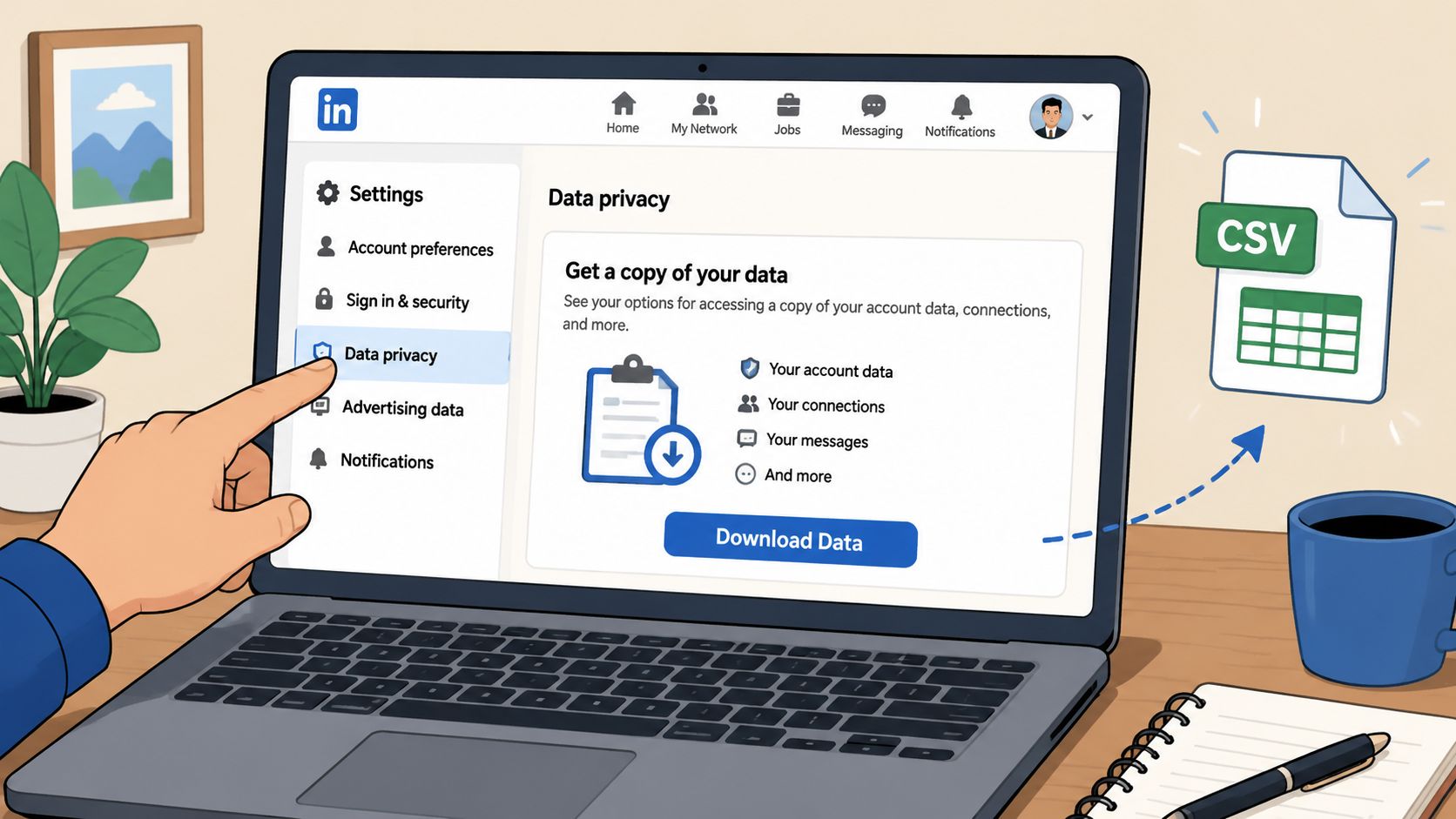
On desktop, go to Settings & Privacy, then open Data privacy. Look for the option to get a copy of your data. From there, request the archive that includes your connections data.
A practical way to handle it:
- Open LinkedIn on desktop and log in.
- Go to your account settings.
- Click Data privacy.
- Request a copy of your data.
- Choose the archive option that includes your connections.
- Wait for the email, then download the ZIP file.
- Open the file and locate Connections.csv.
That part is straightforward. The confusion starts after the file lands in your inbox.
What shows up in the file
In most cases, the export gives you the basic fields people expect from a networking backup. You'll usually see name, company, position, and connection date, plus other standard columns tied to the export format. That's enough for sorting, filtering, and CRM mapping.
What you should not expect is a full outbound-ready database.
Most guides falsely imply that exporting LinkedIn connections includes email addresses, but data shows emails are only included if the connection explicitly enabled public visibility, a privacy setting users cannot override. Analysis shows 99% of 1st-degree connections do not have visible emails, according to Accelstone's breakdown of LinkedIn connection exports.
That single point explains why so many sales and growth teams feel misled. The export works exactly as designed. It just doesn't match the fantasy version people had in mind.
A short walkthrough helps if you want to see the native flow before doing it yourself.
What to do after download
Once the ZIP arrives:
- Extract it immediately: Don't try to work inside the compressed file.
- Open in Excel or Google Sheets: CSV formatting is easier to inspect there.
- Scan for blanks first: Check email, company, and title fields before planning imports.
- Save a working copy: Keep the original untouched, then edit a duplicate.
If you only need a backup or a simple CRM upload, this method is enough. If you have a large network, need segmented exports, or suspect missing records, the premium workflow is more reliable.
Advanced Exports with Sales Navigator
Sales Navigator changes the job. Instead of dumping your entire first-degree network into one file, it lets you build targeted slices based on who you need to work with. That matters more for account-based sales teams, recruiters, and operators managing a big network.

When the basic export stops being enough
The native export is broad. Sales Navigator is selective.
If you're trying to work through a large network, you usually don't want everyone at once. You want subsets like:
- founders in B2B SaaS
- heads of marketing in North America
- RevOps leaders at mid-market companies
- buyers by geography, seniority, or company segment
That's where Sales Navigator becomes useful. You can search, filter, save, and work in batches that match real campaigns instead of wrestling with one oversized spreadsheet.
For a more strategic frame on list building and segmentation, this LinkedIn lead generation strategy guide is a good companion to the export workflow.
How to split large exports properly
This is the part most tutorials skip. Large exports don't always come back cleanly in one pass.
Recent developments reveal that LinkedIn now fragments large connection exports greater than 2,500 into multiple CSV files or requires manual splitting via Sales Navigator filters. Without this step, over 40% of connections may be missing from the final export, as shown in this YouTube walkthrough on large LinkedIn exports.
That means enterprise users and heavy networkers need a more deliberate process.
Try a segmented export logic like this:
| Filter type | Why use it | Example split |
|---|---|---|
| Geography | Reduces oversized result sets | US, UK, DACH, APAC |
| Seniority | Helps CRM routing and deduping | Founder, Director, VP |
| Company | Useful for target account programs | Named accounts by list |
| Industry | Makes outreach relevant | SaaS, manufacturing, services |
Basic export versus filtered workflow
Here's the trade-off.
Use the native export when you need a backup, quick import, or rough network overview.
Use Sales Navigator when you need campaign-ready slices, better control over list size, and a way to avoid incomplete exports on large datasets.
A filtered export takes longer up front, but it usually saves time later because the list already matches how sales and marketing teams actually work.
The other benefit is quality control. When you export in chunks, you can inspect each segment before importing it into a CRM. That makes duplicates, missing records, and bad mapping easier to catch.
If your network is modest, the official export is fine. If your network is large, a filtered workflow is the safer operating method.
Cleaning and Understanding Your Exported CSV File
The CSV is only useful if you normalize it. Raw LinkedIn exports tend to look tidy at first glance, but they're rarely ready for direct CRM use. Company names vary, job titles are inconsistent, and empty cells create bad assumptions fast.
What each field is actually useful for
The key columns are usually easy to recognize:
- First Name and Last Name help with contact creation and deduping.
- Company gives you account-level grouping.
- Position helps with role-based segmentation.
- Connected On gives context on relationship recency.
- URL or profile-related fields can help with manual verification when available.
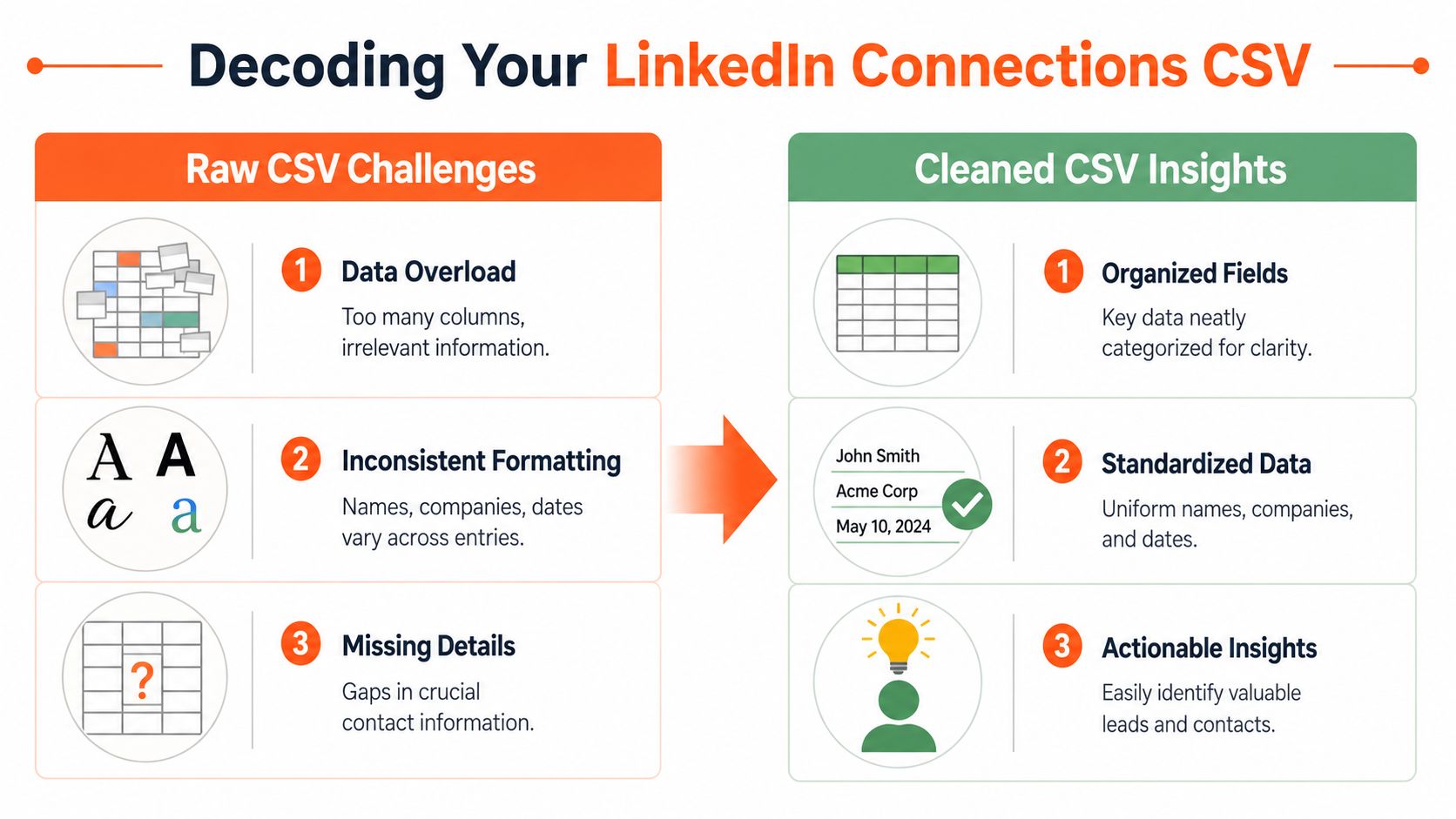
A clean reading of the file matters because each field supports a different action. Company maps to account ownership. Position maps to ICP filtering. Connection date can signal whether a relationship is old, recent, or tied to a campaign period.
How to make the CSV usable
Start with a duplicate of the original file. Never edit the raw export directly.
Then clean in this order:
Standardize company names
“IBM,” “I.B.M.” and “International Business Machines” shouldn't live as separate accounts in your CRM.Normalize job titles
“Head of Growth,” “Growth Lead,” and “VP Growth” may belong in different buckets depending on your sales motion.Remove obvious non-target rows
Recruiters, students, vendors, former teammates, and unrelated service providers can clutter imports.Create helper columns
Add fields like ICP fit, region, owner, source, or notes.Check blank cells before import
Missing fields can break mapping rules or produce weak records.
Clean data beats bigger data. A smaller list with clear segments is easier to route, personalize, and maintain.
A practical spreadsheet pass usually includes filters, find-and-replace, simple title grouping, and manual review of edge cases. This is boring work, but it's the difference between a useful CRM import and a pile of dead records.
What's missing matters too. If contact details you hoped for aren't there, that isn't a spreadsheet issue. It's a platform privacy limit. Treat the CSV as relationship metadata, not as a finished outreach list.
Troubleshooting Common Export Problems
LinkedIn's export process is simple, but simple doesn't mean frictionless. Most problems fall into three buckets: the archive never arrives, the file opens badly, or the content is thinner than expected.
When the archive email never arrives
If the request appears to go through but nothing lands in your inbox, check the basics first.
- Spam and promotions folders: LinkedIn emails often land there.
- Primary account email: Make sure the account is tied to the inbox you're checking.
- Repeat request: Sometimes the first archive request stalls and a new one clears the issue.
- Desktop browser retry: If you requested from one browser, try again in another after clearing cache.
If the export remains stuck in a pending state, wait a bit and retry rather than stacking multiple requests quickly. Repeated clicks don't usually speed anything up.
When the CSV looks broken or incomplete
This is common in Excel. CSV files can open with the wrong delimiter, odd character formatting, or all data in one column.
Try this sequence:
- Import instead of double-clicking: Use Excel or Google Sheets import tools.
- Check encoding settings: If names display strangely, encoding is often the issue.
- Extract the ZIP again: A corrupted or partial unzip can create messy output.
- Open the file in another app: Sheets and Excel don't always interpret the same CSV the same way.
A file can also look incomplete when top note rows sit above the actual headers. If the structure seems shifted, inspect the first few rows before assuming the export failed.
When the export is technically correct but still disappointing
This is the hardest problem because it isn't a bug. It's expectation mismatch.
If you were hoping for a list full of direct emails, phone numbers, and rich profile data, the export will feel underwhelming. That doesn't mean LinkedIn broke anything. It means the export is designed around user-controlled visibility and basic portability.
The export tells you who's in your network. It doesn't tell you everything you wish you knew about them.
The practical fix is to change the job you assign the file. Use it for backup, segmentation, mapping, and context. Don't ask it to perform enrichment, qualification, or ongoing relationship tracking by itself.
From Export to Automation The Future of Lead Generation
A CSV helps you organize the past. It doesn't build the future.
That matters more now because LinkedIn is increasingly an engagement platform, not just a digital Rolodex. LinkedIn reached 1.3 billion registered members by January 2026, with comment activity surging over 30% and video uploads rising more than 20% throughout 2025, according to Leadfeeder's LinkedIn statistics roundup. If attention is moving toward conversations, then static exports become stale faster than expected.
A CSV is a snapshot, not a pipeline
An exported file can tell you:
- who you connected with
- where they worked at the time of export
- what title they held
- when the connection happened
It cannot tell you who's active right now, who's discussing problems you solve today, or who just engaged with a relevant idea in your niche. Those signals live inside the platform, in comments, posts, replies, and profile visits.
That's why a lot of manual list work stalls. Teams spend time collecting records when they should be creating relevance.
Why comments-first outreach keeps compounding
Strategic commenting is stronger than passive list ownership because it creates visible context. Instead of exporting a name and guessing whether the person remembers you, you show up in public conversations they already care about.
There's a useful operating window here. The optimal time to comment is the first 30 to 60 minutes after a post goes live because LinkedIn is actively deciding whether to distribute it further during that period, as explained in this guide to LinkedIn commenting strategy.
That changes the workflow:
| Static export thinking | Engagement-first thinking |
|---|---|
| Download list | Identify active conversations |
| Clean spreadsheet | Add visible value in comments |
| Import to CRM | Track who engages back |
| Guess relevance | Earn relevance publicly |
A thoughtful system for this usually includes content monitoring, structured commenting, lead tracking, and follow-up tied to the original interaction. If you want to see how that kind of workflow can be operationalized, this AI sales system for automating lead prospecting outlines the mechanics.
What an automation-first system changes
Automation is useful when it increases consistency without making your activity look robotic. The better systems focus on finding relevant posts, spacing activity carefully, drafting useful comments, and linking engagement back to pipeline actions.
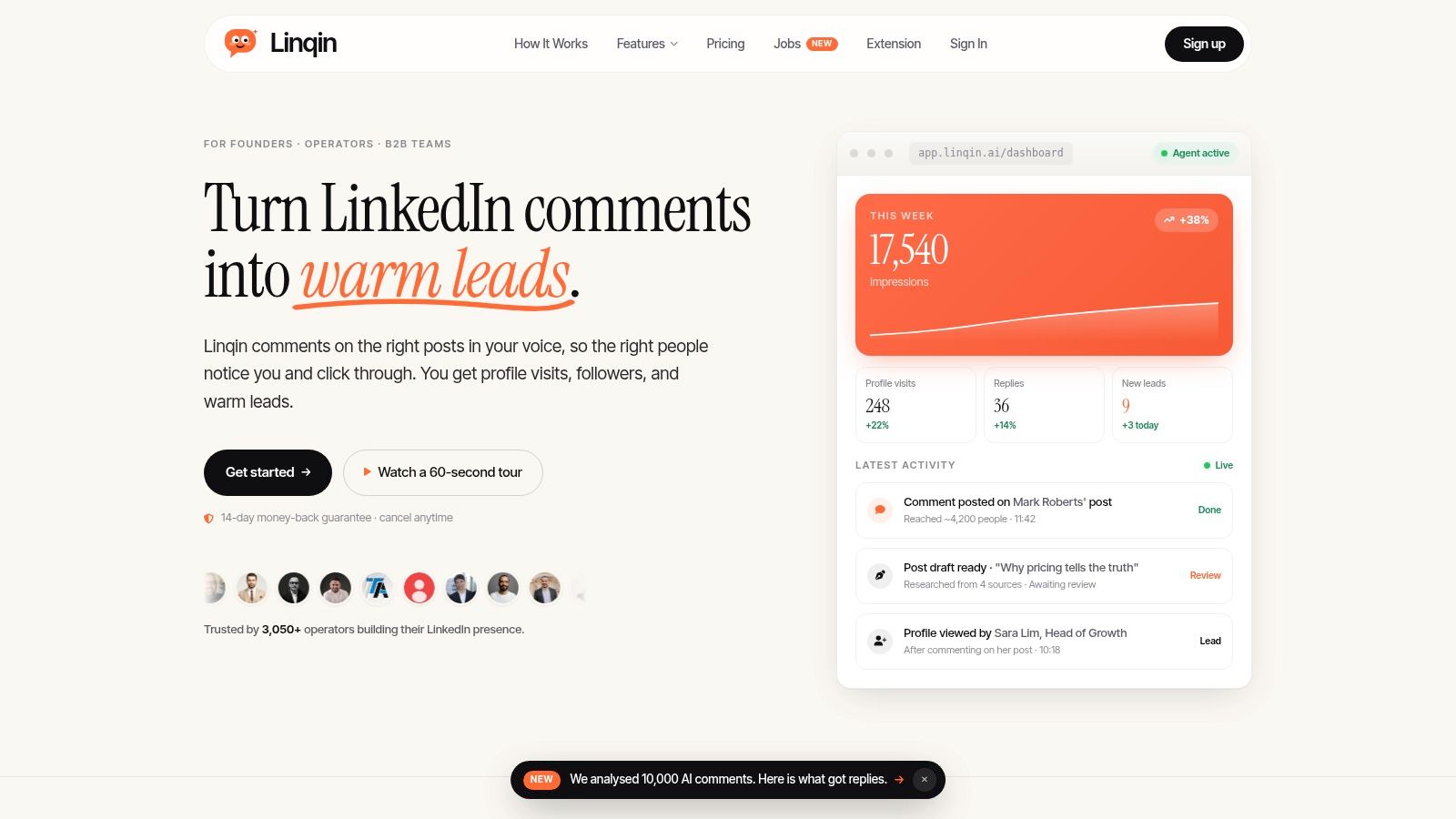
That's often the crucial shift many professionals need. Export your LinkedIn connections when you need a backup or a clean handoff into a CRM. But for growth, stop treating the spreadsheet as the finish line. The more impactful move is staying present in the conversations that generate trust, profile visits, and inbound interest.
If you want to move beyond one-time exports and grow LinkedIn while you sleep, Linqin is built for that job. It automates comments, posts, lead tracking, and voice-consistent engagement so your LinkedIn activity keeps working even when you're not manually in the feed. Sign up for Linqin.